
Most Mac users never open Terminal.
I understand why. The black window full of text can look intimidating if you've never used it before.
The good news is that you don't need to be a developer, system administrator, or command-line expert to benefit from Terminal. In fact, learning just a few basic commands can help you navigate files faster, troubleshoot common issues, and better understand how your Mac works.
I've been using Macs for years, and while I spend most of my time in graphical apps, there are still many situations where Terminal is the quickest and easiest tool for the job.
In this article, I'll show you 10 beginner-friendly Terminal commands that every Mac user should know. Don't worry if you've never touched Terminal before - we'll keep things simple and practical.
1. pwd - Find Out Where You Are
The pwd command stands for Print Working Directory. It shows your current location in the macOS file system.
pwdExample output:
/Users/pawelbialecki/DocumentsThis tells you exactly which folder you're currently working in.
Why is this useful? When you're learning Terminal, it's easy to lose track of where you are. Running pwd gives you a quick answer before you create, move, or edit files.
I still use this command regularly when working in folders with long paths.
2. ls - View Files and Folders
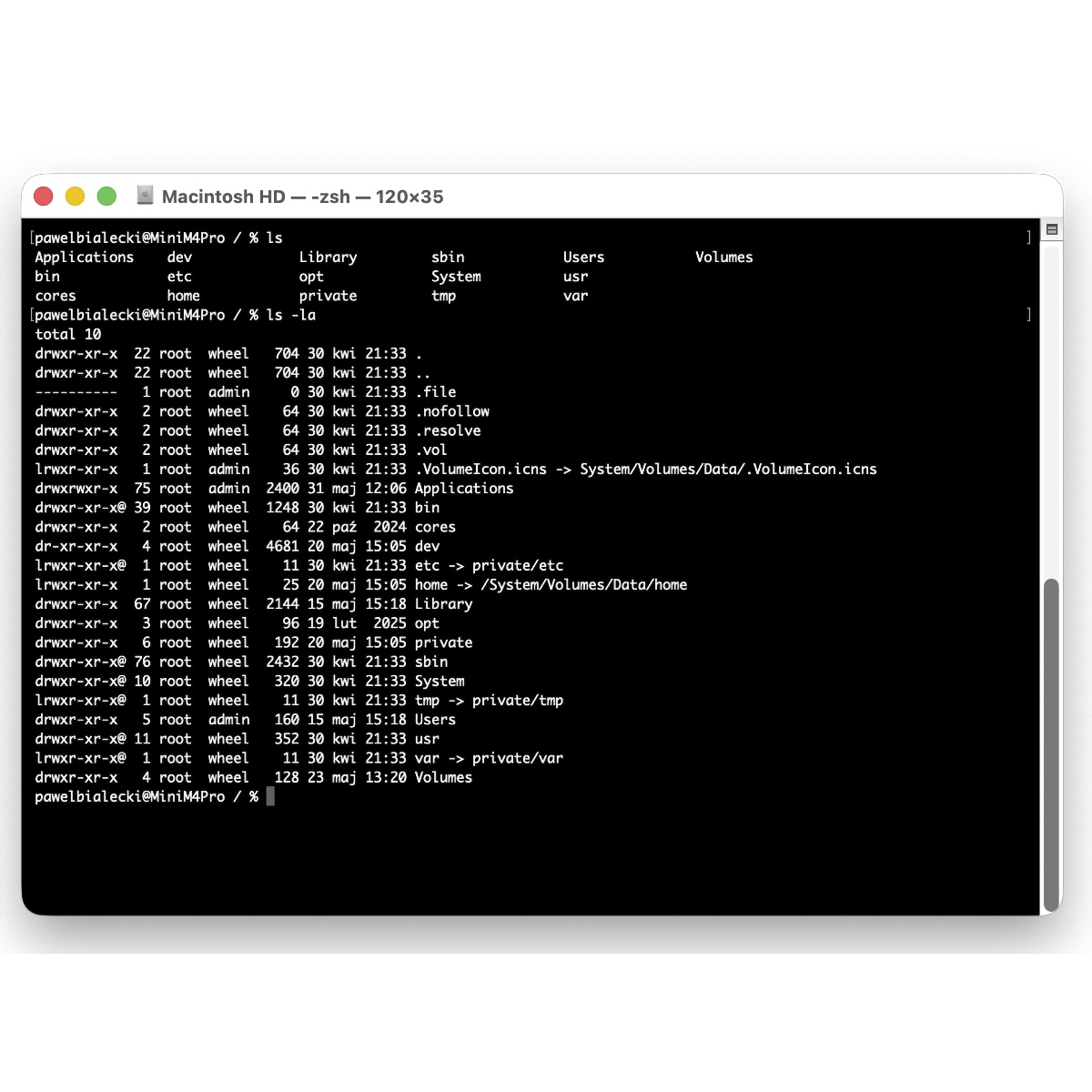
The ls command lists the contents of the current folder.
lsExample output:
Documents
Downloads
Pictures
Desktop
If you want more details, use:
ls -laThis version shows:
- Hidden files
- File permissions
- File sizes
- Modification dates
When you're trying to find a file or understand what's inside a folder, ls is usually the first command you'll run.
3. cd - Move Between Folders
The cd command stands for Change Directory. It lets you move between folders.
For example:
cd DocumentsThis moves you into the Documents folder.
To go back one level:
cd ..To return to your Home folder from anywhere:
cd ~Learning cd is one of the biggest steps toward feeling comfortable in Terminal. Once you know how to move around, the command line becomes much less intimidating.
4. open - Open Files and Folders from Terminal
The open command is one of my favorite macOS-specific commands.
To open the current folder in Finder:
open .The dot means "the current folder."
You can also open a specific file:
open report.pdfmacOS will launch the default app for that file type automatically.
This command is a great bridge between Terminal and the graphical interface. You can work in Terminal and instantly jump back into Finder whenever you need to.
5. mkdir - Create a New Folder
The mkdir command stands for Make Directory.
To create a new folder:
mkdir MyProjectYou should now see a new folder called "MyProject" in your current location.
You can verify it with:
lsThis command is useful when you're organizing files, creating project folders, or building a new folder structure quickly.
Instead of opening Finder, right-clicking, and choosing "New Folder," you can create folders directly from Terminal with a single command.
6. touch - Create a New File
The touch command creates a new empty file.
For example:
touch notes.txtThis creates a file called notes.txt in your current folder.
You can verify it was created by running:
lsYou'll see the new file in the list.
This command is handy when you need to quickly create a text file, a script, or a placeholder file without opening another application first.
7. caffeinate - Keep Your Mac Awake
Have you ever started a large download, file transfer, or video export and worried your Mac might go to sleep?
That's where caffeinate comes in.
caffeinateAs long as this command is running, your Mac will stay awake.
To stop it, press:
Control + CThis is one of those commands that sounds funny but is surprisingly useful. I still use it occasionally when I'm running long tasks and don't want to change my power settings.
8. ping - Test Your Internet Connection
When a website isn't loading, it's often difficult to know whether the problem is your internet connection or the website itself.
The ping command can help.
ping google.comYou'll see responses like:
64 bytes from ...
64 bytes from ...
64 bytes from ...
This means your Mac can successfully reach Google's servers.
To stop the command, press:
Control + CWhile it's a simple tool, ping is one of the fastest ways to perform basic network troubleshooting.
9. top - See What's Using Your Mac's Resources
The top command shows running processes and system activity in real time.
topYou'll see information such as:
- CPU usage
- Memory usage
- Running processes
- System load
Think of it as a Terminal version of Activity Monitor.
If your Mac suddenly feels slow, top can help you identify whether a specific application is consuming excessive resources.
To exit, press:
q10. say - Make Your Mac Talk
Let's finish with something fun.
The say command uses macOS text-to-speech to speak a sentence out loud.
say "Hello from Terminal"Your Mac will immediately read the text using one of its built-in voices.
You can try anything you want:
say "Welcome to macOS"While this command isn't essential for productivity, it's a great reminder that Terminal isn't just for developers. Sometimes it's okay to experiment and have a little fun while learning.
Why I Still Use Terminal Every Week
I've been using Macs for many years, and I still open Terminal several times every week.
Not because I have to, but because it's often the fastest way to accomplish a task.
Whether I'm checking network connectivity, creating files, navigating folders, or troubleshooting a problem, Terminal gives me direct access to tools that would otherwise take several clicks through the graphical interface.
The good news is that you don't need to learn hundreds of commands. Just a handful of useful ones can save time and help you better understand how your Mac works.
Start with the commands in this article, practice them occasionally, and you'll quickly become more comfortable with Terminal than most Mac users.