This project is a hands-on Windows Server 2025 home lab built on Hyper-V.
The goal was to create a small but realistic Active Directory environment from scratch, including networking, DNS, domain services, user and computer management, domain joining, Group Policy, and basic troubleshooting.
The lab runs entirely on a dedicated Windows 11 Pro host using Hyper-V.
Project Goal
The main objective was to build a practical Windows Server 2025 environment that reflects the core tasks performed by a junior system administrator.
The lab was designed to cover:
- Hyper-V virtualization
- virtual networking
- Windows Server 2025 deployment
- Active Directory Domain Services
- DNS
- organizational units
- users and security groups
- Windows 11 domain joining
- Group Policy
- troubleshooting and validation
The focus was not only on making the environment work, but also on understanding why each component is required and how the individual services depend on each other.
Lab Architecture
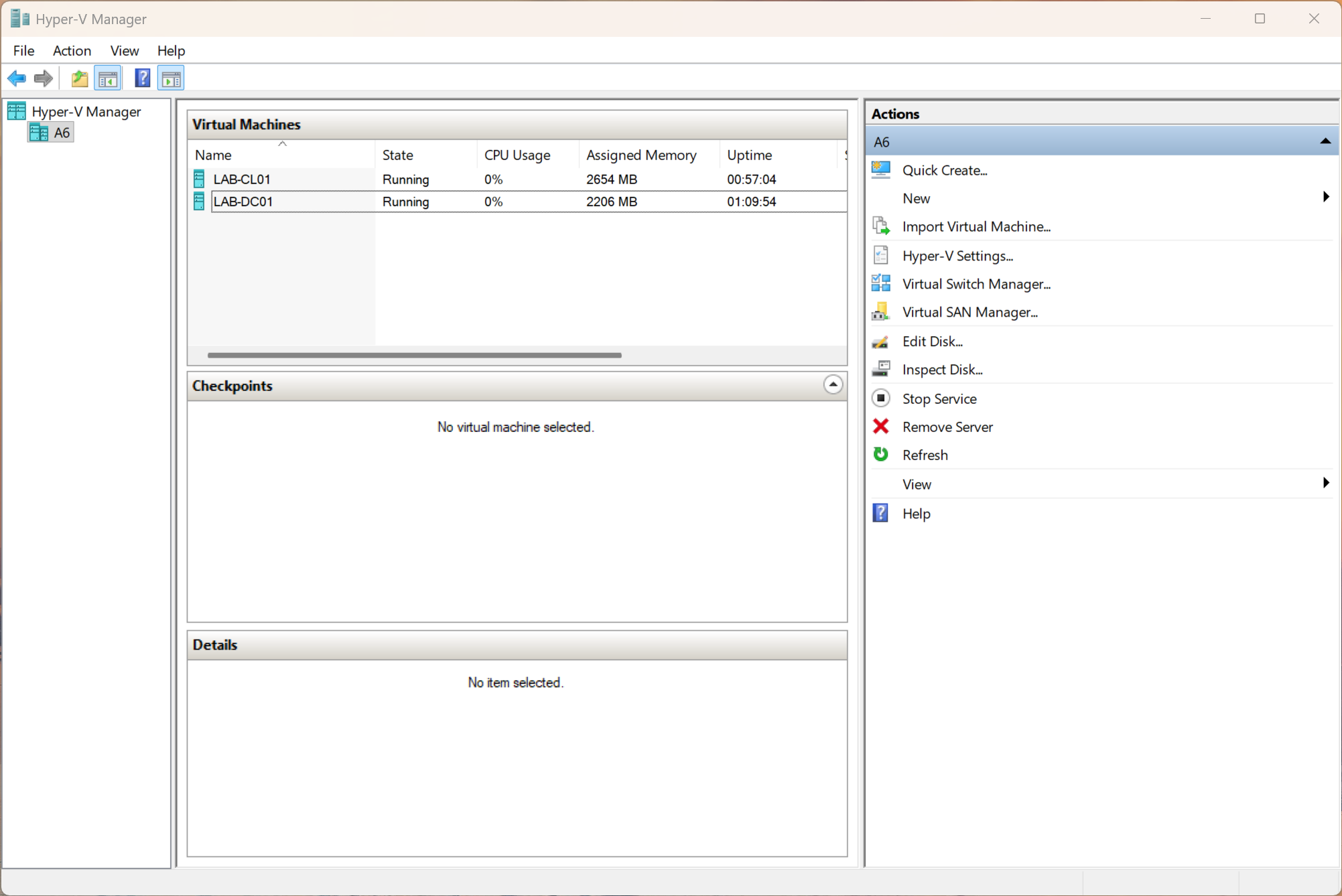
The lab consists of one physical Hyper-V host and two virtual machines.
GEEKOM A6
Windows 11 Pro
Hyper-V Host
10.10.10.1
        |
        |
   LAB-Internal
        |
        +-------------------+
        |                   |
        |                   |
   LAB-DC01             LAB-CL01
Windows Server 2025   Windows 11 Enterprise
10.10.10.10           10.10.10.100
AD DS                 Domain Client
DNS
Global Catalog
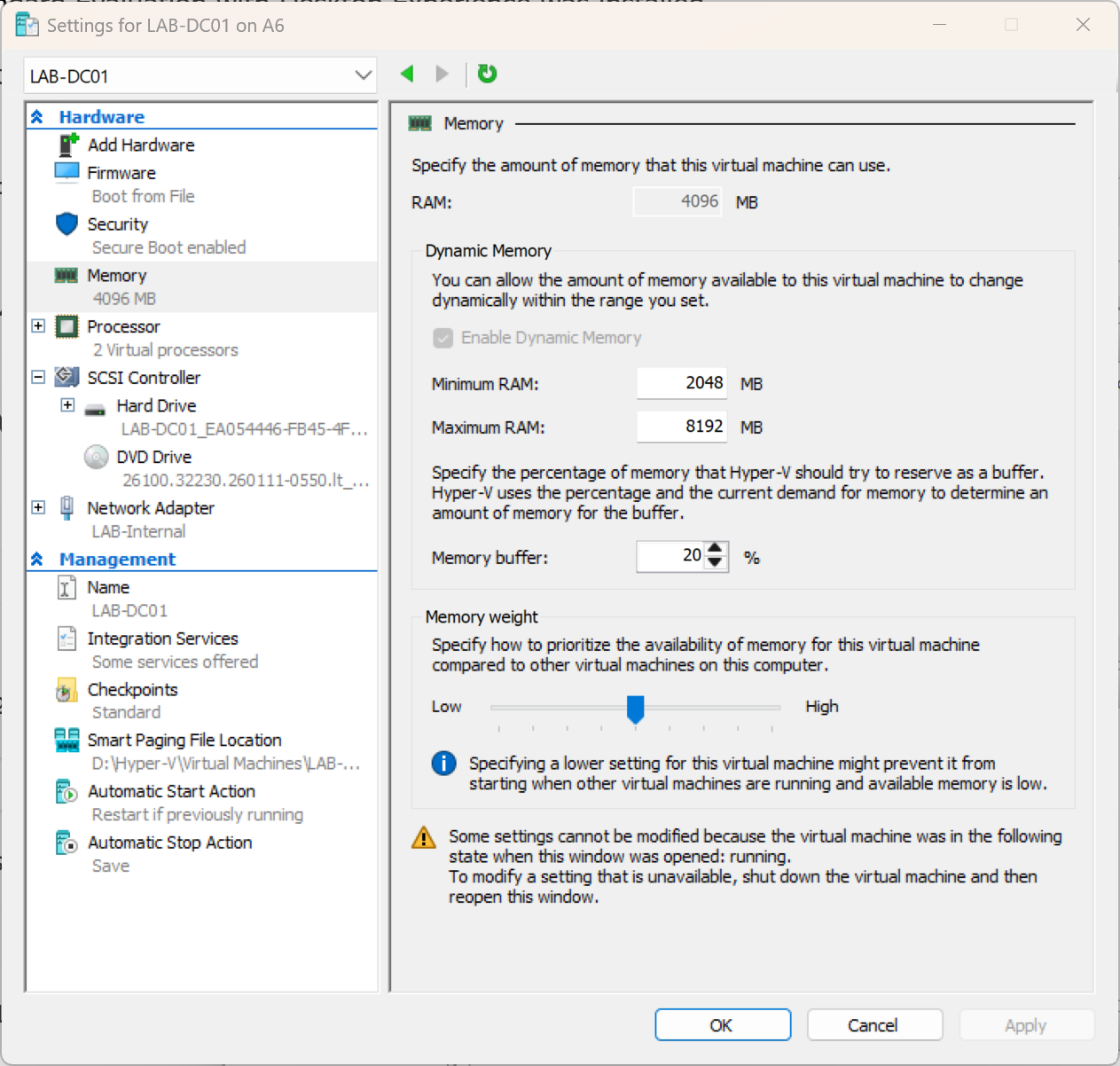
The lab uses a dedicated Hyper-V internal virtual switch named:
LAB-InternalThe internal network uses:
10.10.10.0/24This keeps the lab isolated from the home network while still allowing communication between the Hyper-V host and the virtual machines.
Hyper-V Configuration
The Hyper-V environment was configured on Windows 11 Pro.
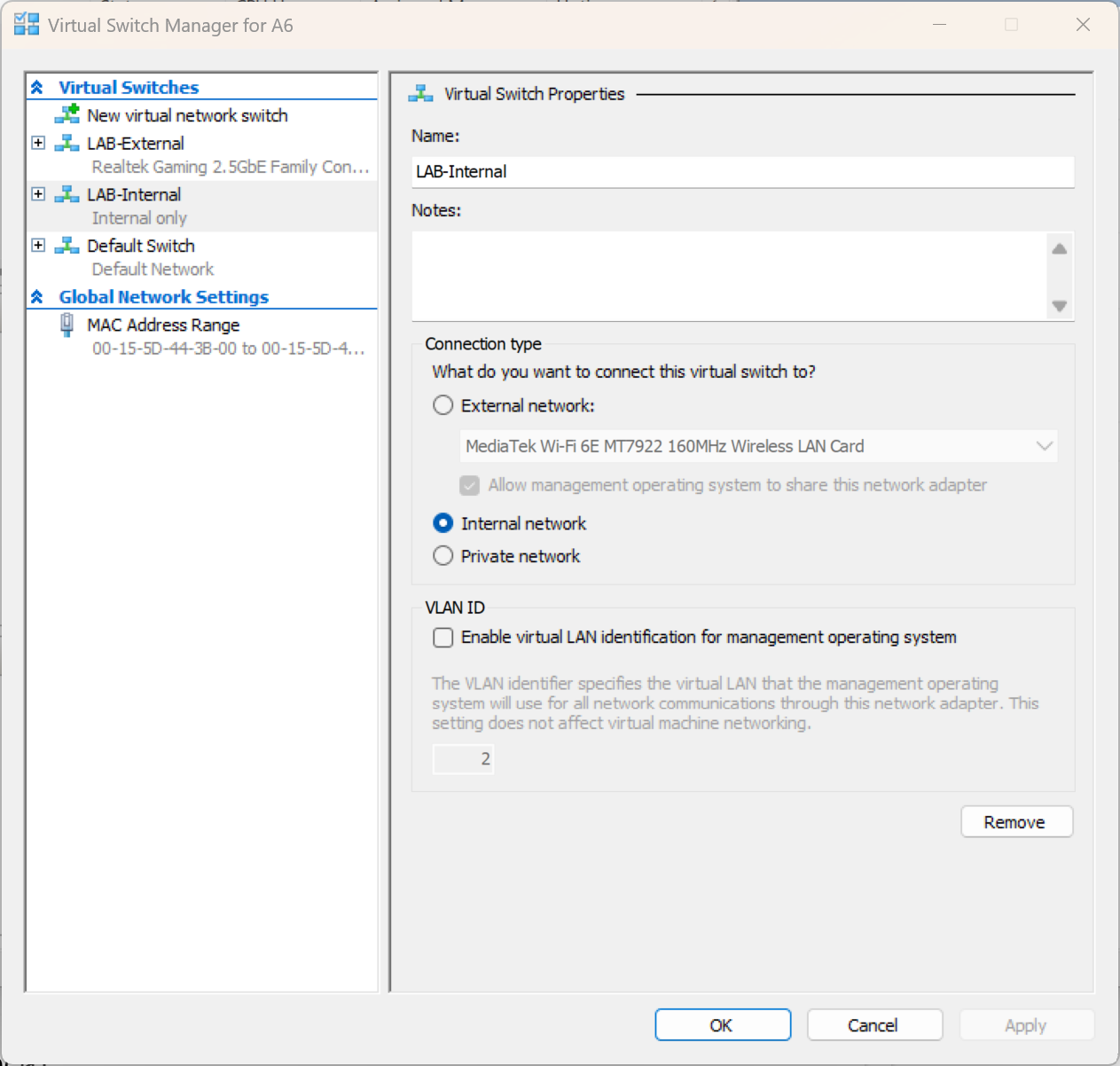
The first virtual machine was created as:
Name: LAB-DC01
Generation: 2
vCPU: 2
RAM: 4 GB
Disk: 80 GB dynamically expanding VHDX
Network: LAB-Internal
Windows Server 2025 Standard Evaluation with Desktop Experience was installed.
A second Generation 2 virtual machine was later created for the Windows 11 domain client.
For Windows 11, virtual TPM and Secure Boot were enabled to meet Windows 11 system requirements.
Network Configuration
The Hyper-V host virtual adapter was assigned:
IP: 10.10.10.1
Subnet mask: 255.255.255.0
The domain controller was configured with:
Hostname: LAB-DC01
IP: 10.10.10.10
Subnet mask: 255.255.255.0
DNS: 10.10.10.10
The Windows 11 client was configured with:
Hostname: LAB-CL01
IP: 10.10.10.100
Subnet mask: 255.255.255.0
DNS: 10.10.10.10
No default gateway was configured initially because the internal lab network was intentionally isolated from the Internet.
Network Troubleshooting
During the initial connectivity test, ping traffic failed in both directions even though the IP configuration was correct.
The troubleshooting process included:
1. Verifying IPv4 addresses
2. Verifying subnet masks
3. Checking ARP resolution
4. Verifying virtual switch connectivity
5. Investigating Windows Defender Firewall
The ARP table on LAB-DC01 correctly resolved the Hyper-V host:
10.10.10.1 -> 00-15-5D-44-3B-00This confirmed that Layer 2 communication was working.
The issue was caused by inbound ICMP echo requests being blocked by Windows Defender Firewall.
After enabling the appropriate ICMPv4 inbound rules, ping communication worked in both directions.
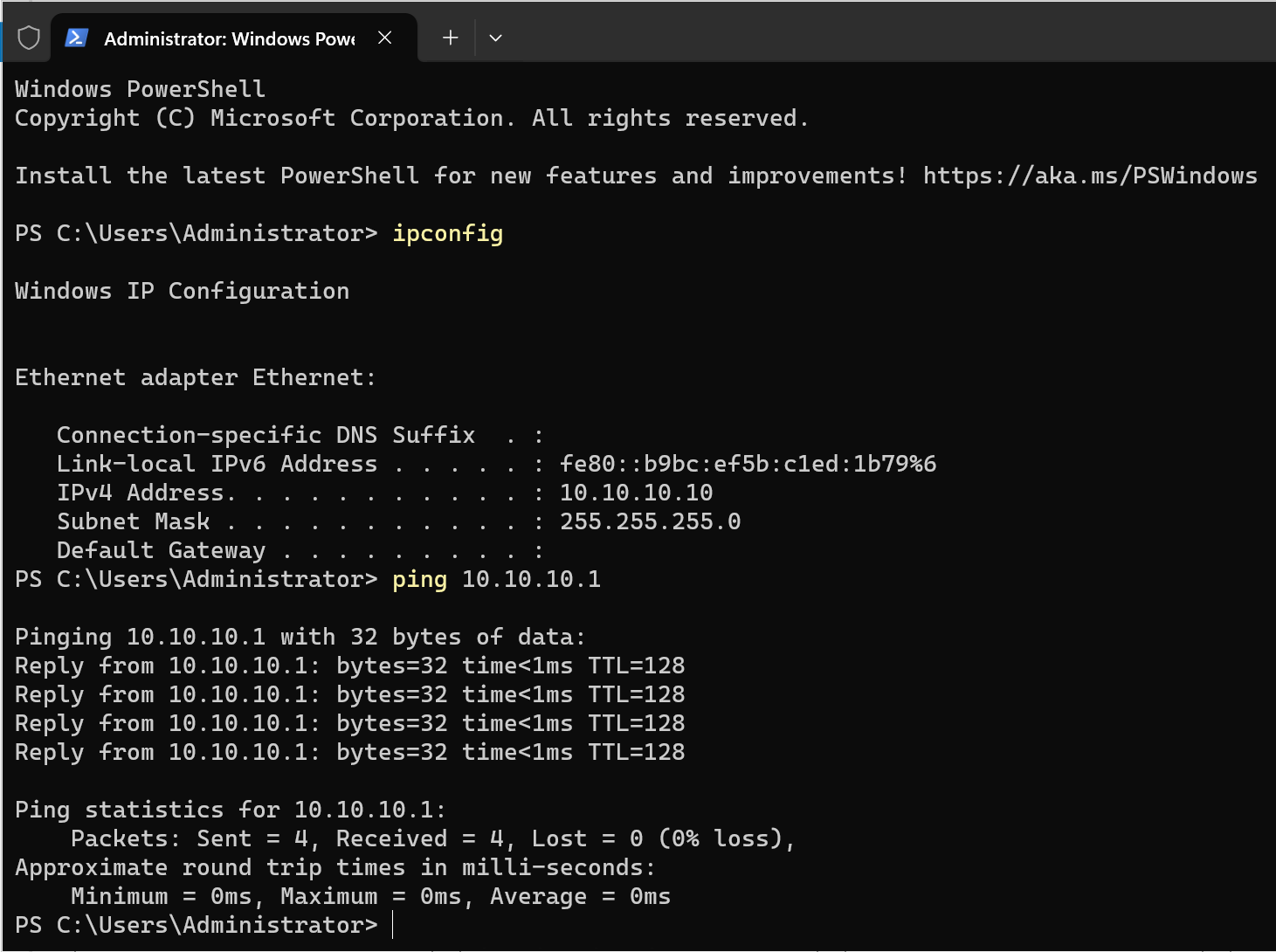
This was an important troubleshooting exercise because it demonstrated that a failed ping does not automatically mean that routing or addressing is broken.
Active Directory Domain Services
The Active Directory Domain Services role was installed on LAB-DC01.
The server was then promoted to the first domain controller in a new forest.
The domain created for the lab is:
lab.bialecki.devThe NetBIOS domain name is:
LABLAB-DC01 was configured as:
- Domain Controller
- DNS Server
- Global Catalog
DNS
DNS was installed together with Active Directory Domain Services.
The DNS zone:
lab.bialecki.devwas created automatically during domain promotion.
DNS functionality was validated using PowerShell:
Resolve-DnsName lab.bialecki.dev -Server 10.10.10.10The domain resolved correctly to:
10.10.10.10The domain controller SRV record was also verified:
Resolve-DnsName _ldap._tcp.dc._msdcs.lab.bialecki.dev -Type SRV -Server 10.10.10.10The result correctly pointed to:
lab-dc01.lab.bialecki.dev
Port 389
DNS health was further validated using:
dcdiag /test:dnsBoth the domain controller and domain DNS tests passed successfully.
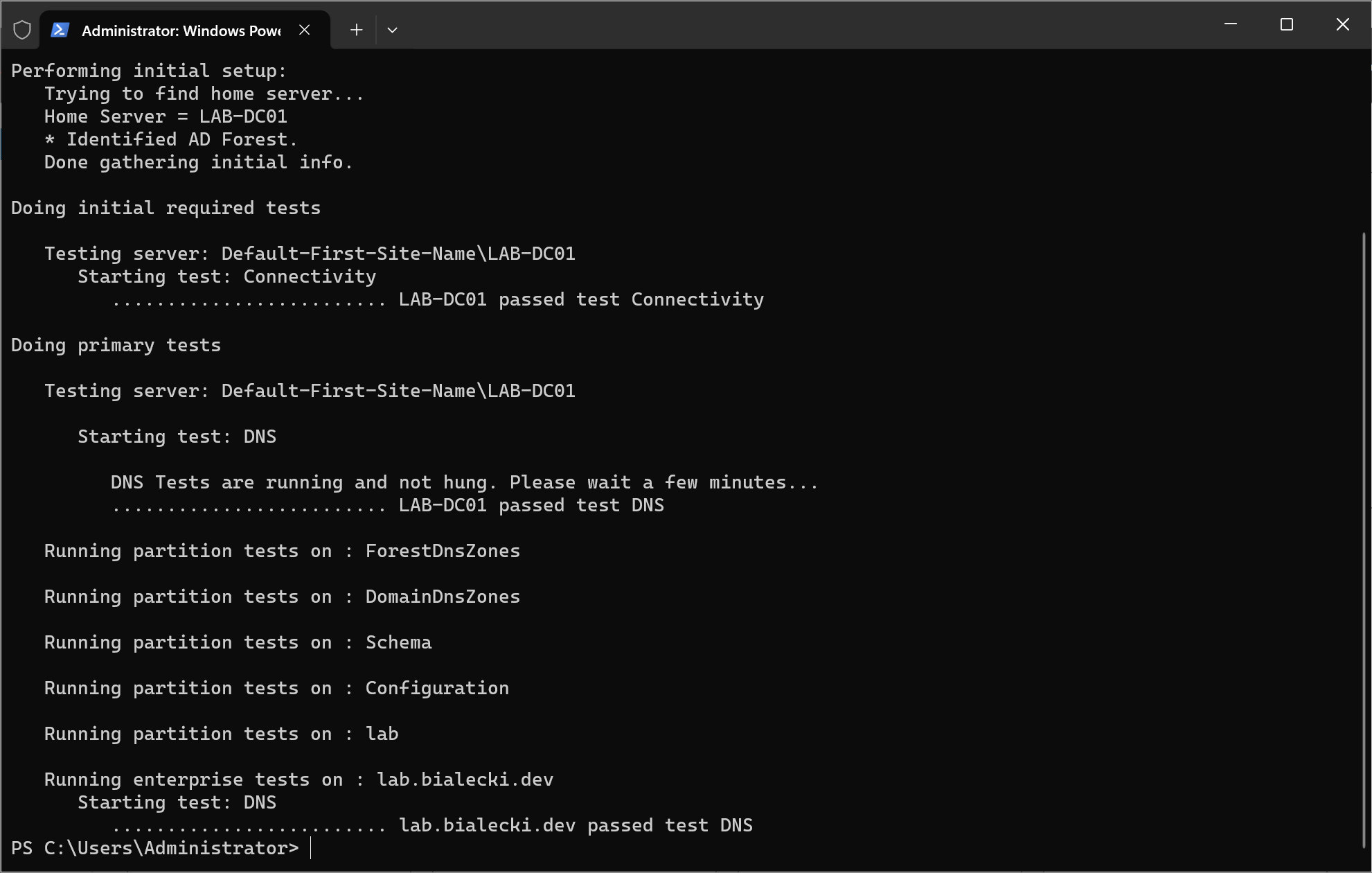
This part of the project helped demonstrate the importance of DNS in Active Directory.
Domain clients do not use DNS only for normal hostname resolution. They also use DNS SRV records to discover services such as LDAP, Kerberos, and Domain Controllers.
Organizational Units
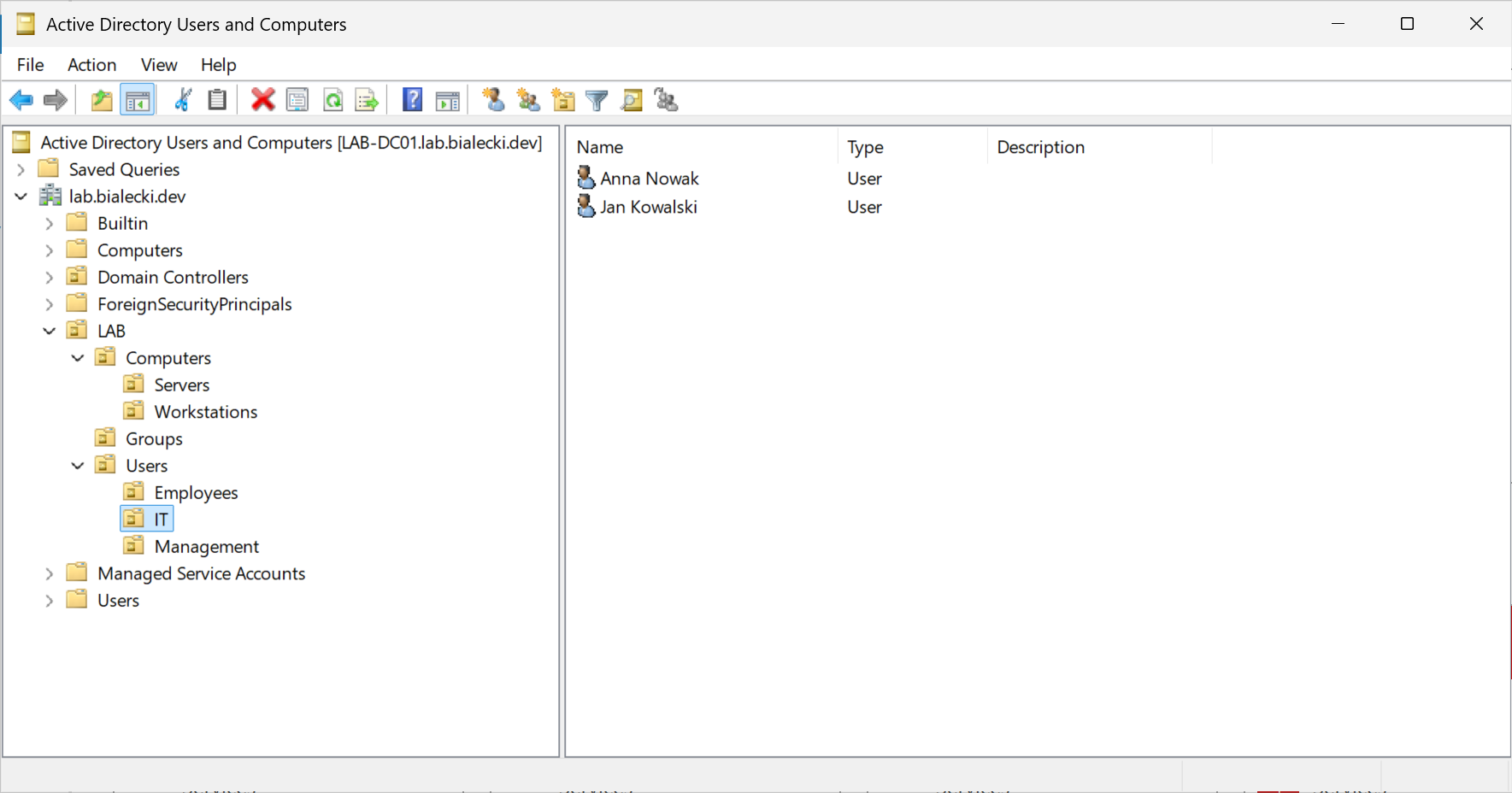
A custom OU structure was created for the lab.
lab.bialecki.dev
└── LAB
    ├── Users
    │   ├── IT
    │   ├── Management
    │   └── Employees
    │
    ├── Computers
    │   ├── Workstations
    │   └── Servers
    │
    └── Groups
This structure separates users, computers, and security groups and provides a logical foundation for Group Policy management.
Users and Security Groups
Two test users were created inside the IT organizational unit.
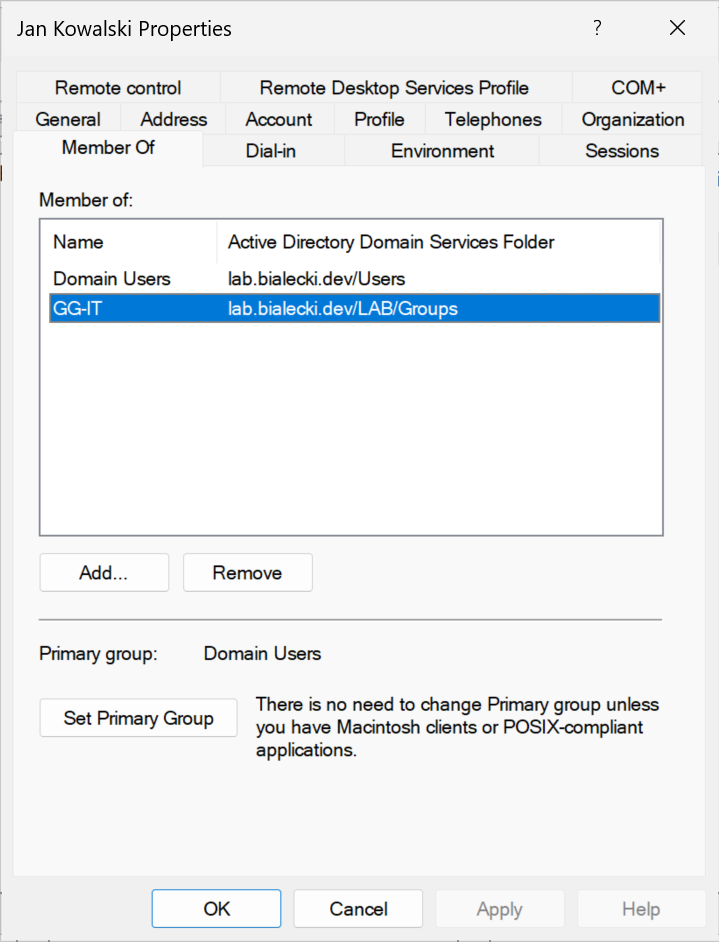
A Global Security Group named:
GG-ITwas created.
The IT users were then added as members of the group.
This demonstrated the difference between:
- Organizational Units, used mainly for organization, delegation, and Group Policy
- Security Groups, used for access control and permissions
Windows 11 Domain Join
A Windows 11 Enterprise virtual machine named:
LAB-CL01was installed and configured as the lab workstation.
The client was configured to use LAB-DC01 as its DNS server:
10.10.10.10The machine was then joined to:
lab.bialecki.devAfter rebooting, the client successfully authenticated against Active Directory.
A domain user successfully logged in using:
LAB\jkowalskiThe active logon server was verified using:
echo $env:LOGONSERVERwhich returned:
\\LAB-DC01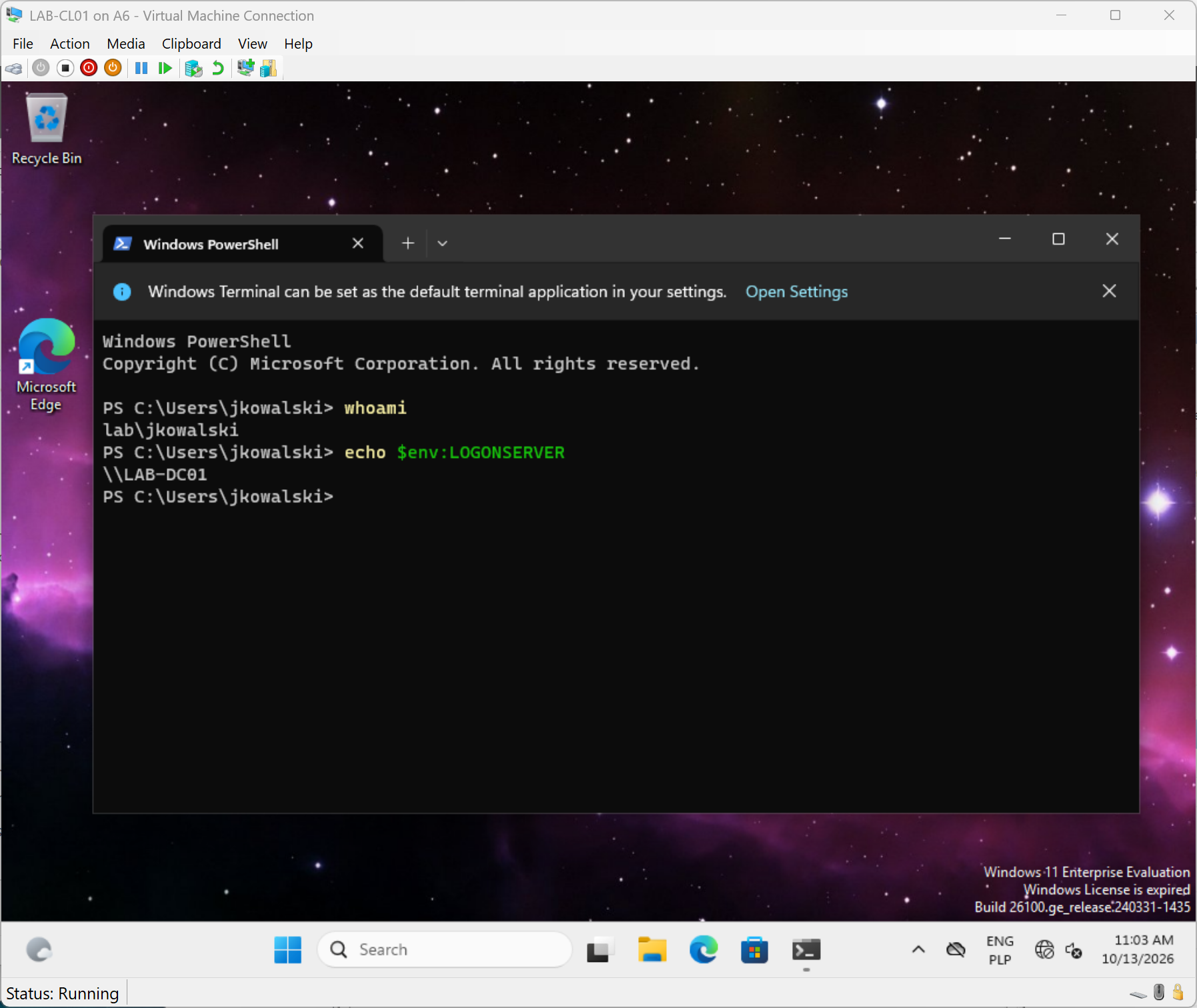
This confirmed successful end-to-end communication between the Windows 11 client and the domain controller.
Group Policy
Two Group Policy Objects were created to demonstrate both user-based and computer-based policy processing.
User GPO
A GPO named:
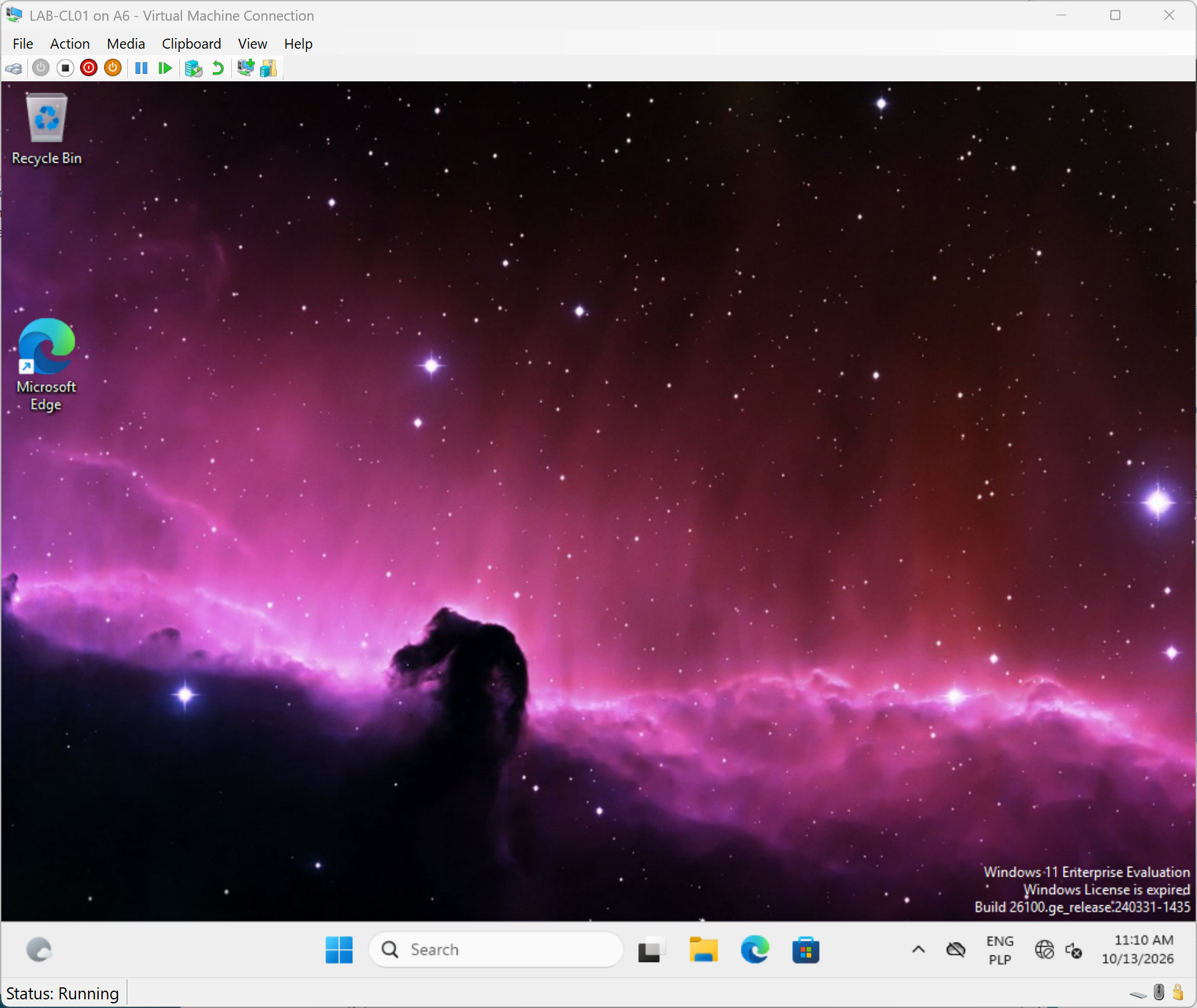
GPO-IT-Wallpaperwas linked to the IT user OU.
The policy configured a desktop wallpaper stored in SYSVOL.
The wallpaper file was stored at:
\\lab.bialecki.dev\SYSVOL\lab.bialecki.dev\scripts\it-wallpaper.jpgAfter Group Policy refresh and user logon, the configured wallpaper was successfully applied.
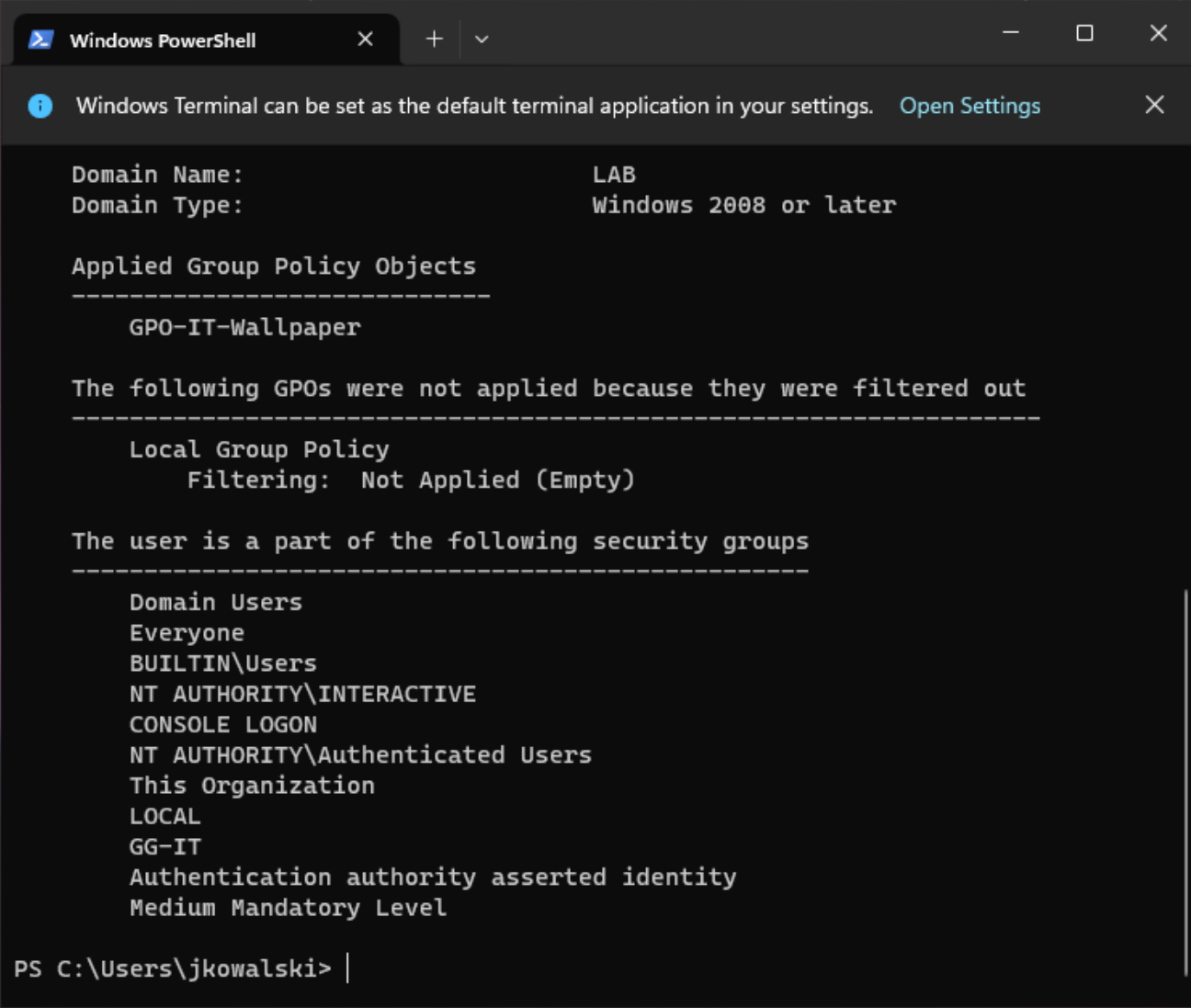
The applied policy was verified using:
gpresult /scope user /rThe output confirmed:
GPO-IT-Wallpaperunder Applied Group Policy Objects.
Computer GPO
A second GPO was created:
GPO-Workstations-LogonMessageIt was linked to the Workstations OU.
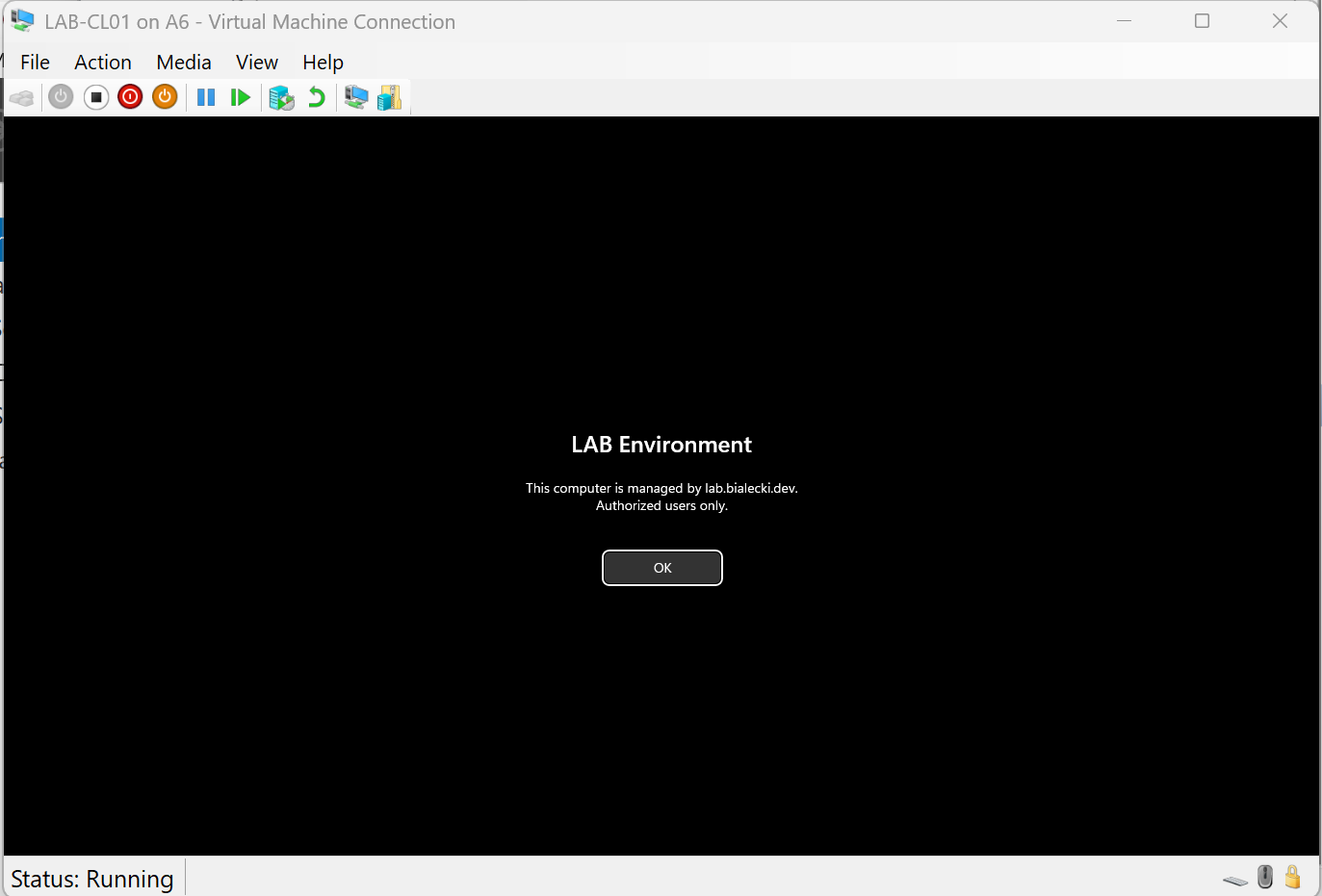
The GPO configured an interactive logon message using:
Computer Configuration
→ Policies
→ Windows Settings
→ Security Settings
→ Local Policies
→ Security Options
The message was successfully displayed before user logon.
The computer policy was verified with:
gpresult /scope computer /rwhich confirmed:
GPO-Workstations-LogonMessage
Default Domain Policy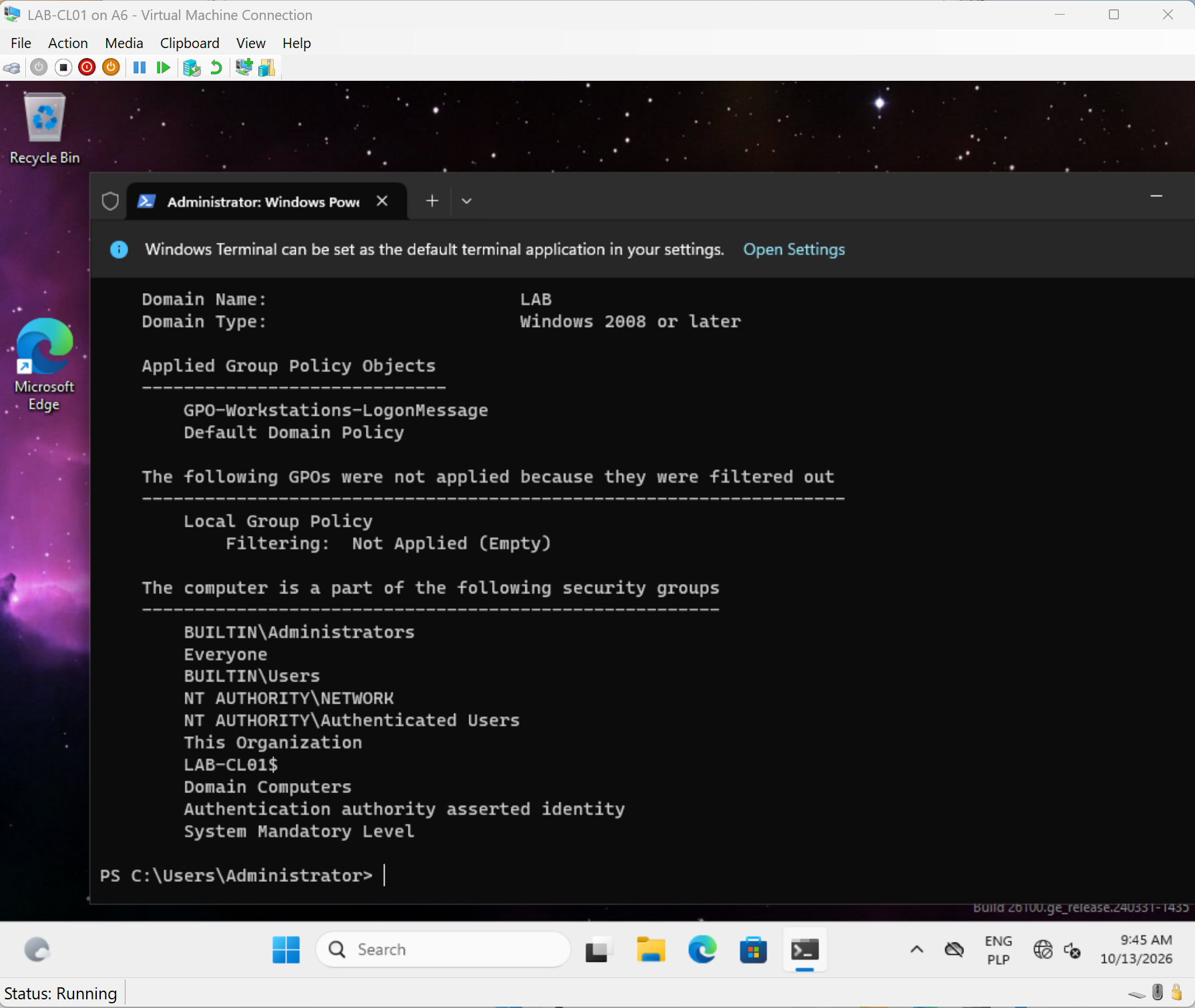
This demonstrated the distinction between:
User Configuration
= policy follows the user

Computer Configuration
= policy follows the device
DNS Troubleshooting Scenario
A deliberate DNS misconfiguration was introduced on LAB-CL01.
The client DNS server was changed from:
10.10.10.10to an external resolver.
This caused the client to lose the ability to resolve internal Active Directory DNS records correctly.
The issue was diagnosed by checking:
- client IP configuration
- configured DNS server
- internal domain resolution
- domain controller discovery
The DNS configuration was then restored to:
10.10.10.10and domain name resolution returned to normal.
This exercise demonstrated why Active Directory domain clients must use the domain DNS infrastructure rather than a public resolver directly.
Validation
The final environment was validated using several built-in tools.
On the domain controller:
dcdiag
dcdiag /test:dns
On the domain client:
whoami
echo $env:LOGONSERVER
ipconfig /all
gpresult /scope user /r
gpresult /scope computer /r
The environment successfully passed the expected DNS, domain authentication, Group Policy, and connectivity tests.
What I Learned
This project provided practical experience with the relationship between virtualization, networking, DNS, Active Directory, and Group Policy.
Key lessons included:
- how Hyper-V virtual switches connect virtual machines
- the difference between Internal, External, and Private virtual networking
- how static addressing is used in server environments
- why DNS is fundamental to Active Directory
- how Domain Controllers are discovered through DNS SRV records
- the difference between workgroups and domains
- the difference between OUs and security groups
- how domain authentication works
- how User Configuration and Computer Configuration GPOs differ
- how to verify Group Policy using gpresult
- how to troubleshoot connectivity using IP configuration, ARP, ICMP, DNS, and firewall rules
The project also reinforced an important administrative principle:
A working configuration is useful, but understanding why it works and how to troubleshoot it is more important.
Next Steps
The current version represents the first functional version of the Windows Server home lab.
Planned future extensions include:
- DHCP Server
- File Server
- NTFS and share permissions
- additional Group Policy scenarios
- second Domain Controller
- Server Core
- PowerShell administration
- Windows Server Backup
- WSUS
- additional DNS scenarios
- NAT and controlled Internet access for lab machines
The project will be extended incrementally as new Windows Server 2025 administration topics are covered.